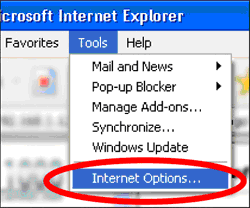
Step 1: Click on the "Tools" menu and go to "Internet Options"
|
-------------------------------------------------------------------------------------------------------------------------------------------------------------------------------- |
|
Step 1: Click on the "Tools" menu and go to "Internet Options" |
|
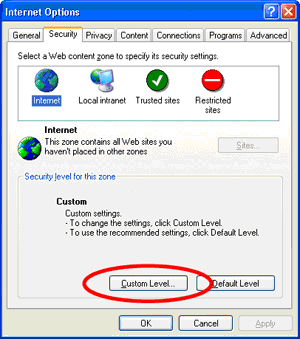
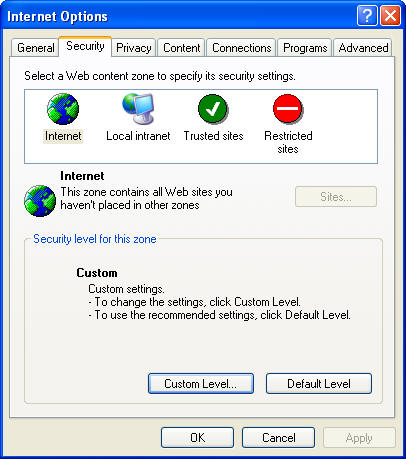
| Step 2: Click on the "Security" tab and then click on the button that says "Custom Level..." |
|
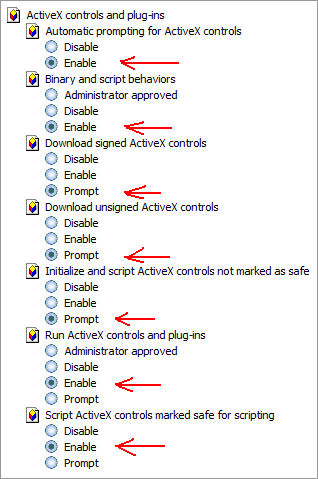
| Step 3: Under ActiveX Controls and Plug-ins section only, change any button that says "Disabled" to "Prompt". Then press "OK" |
|
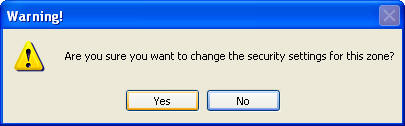
| Step 4: Click "Yes" |
|
| Step 5: Press "OK" |
|
| Step 6: Now you are ready to install the software required to view the cameras. Please return to the home page and click on either camera 2 or 3. |